The Teacher’s PowerPoint Survival Guide
The shortcuts, big-screen fixes and sensible habits that prevent an assembly from becoming a public demonstration of technical difficulties.
You do not need to become a PowerPoint expert. You only need to know what to press when the presentation starts on the wrong slide, appears on the wrong screen or refuses to let the audience look at anything except your email inbox.More Lazy Teacher Tips Here
Designed for: the desktop version of PowerPoint on a Windows computer. PowerPoint for the web and PowerPoint for Mac use some different shortcuts.

Five keys every teacher should know
Memorise these and you can handle most of the situations that cause visible panic at the front of a hall.
Learn these five and you are already ahead of many occasional PowerPoint presenters.
The 60-second pre-assembly check
A quick test on the computer and screen that will actually be used is more valuable than a long test somewhere else.
Connect
Connect the laptop to the large display and make sure the speakers are switched on.
Test
Use Shift + F5 to test a slide containing video, sound, animation or an internet link.
Reset
Press Esc, return to slide 1, close private windows and press F5 when ready.
Getting PowerPoint onto the big screen
After connecting the projector, television or hall display, press Windows key + P. Windows will offer several display choices.
Not sure? Choose Duplicate.

What to do — and what not to do
Most presentation problems are not caused by advanced technology. They are caused by tiny text, untested sound and displaying something that was never intended to become part of the assembly.

Do not make the audience perform an eye test

Close anything you would rather not present

Regain attention without becoming a screen
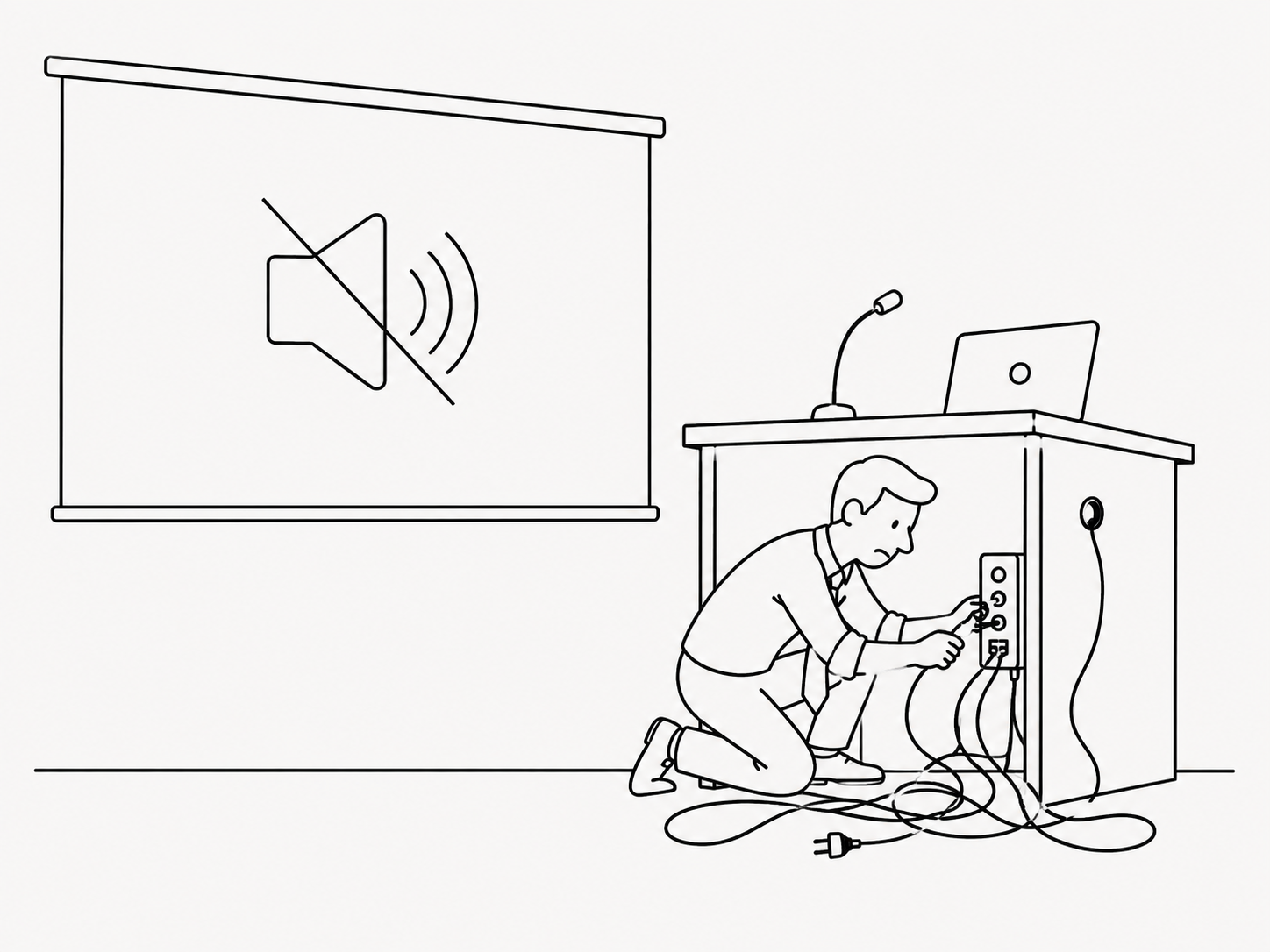
“It worked yesterday” is not a sound check

Presenter View without the mystery
Presenter View lets the audience see the clean presentation while the teacher privately sees the current slide, the next slide, speaker notes and a timer.
To use it with two screens, choose Extend after pressing Windows + P. In PowerPoint, make sure Use Presenter View is selected on the Slide Show tab. You can also start Presenter View with Alt + F5.
This is especially useful when an AssemblyTube presentation contains a script, suggested questions or reminders in the speaker notes. The pupils see the slide; the teacher sees the help.
When the assembly has already started
These are the fixes worth knowing when there is no time for a committee meeting.
Started on the wrong slide?
Esc then Shift + F5Leave the slideshow, select the correct slide and restart from there.
Gone too far?
Left ArrowGo back one animation or slide. Backspace and Page Up also work.
Need attention back?
BMake the audience screen black. Press B again when you are ready to continue.
Need slide 12 now?
12 + EnterType the slide number and press Enter. The audience does not have to watch the journey.
Pointer causing a distraction?
Ctrl + HHide the pointer and navigation buttons during the slideshow.
Cannot remember a shortcut?
F1Open PowerPoint’s slideshow shortcut help while presenting.

Before beginning a full technical investigation, try the Spacebar.
During a slideshow, the Spacebar normally advances to the next animation or slide. The right arrow, down arrow, Enter and Page Down can do the same job.
The teacher’s useful shortcut list
You do not need to learn all of these. Begin with the five essential keys, then add others when they solve a problem you regularly encounter.
| Shortcut | What it does during a slideshow | Why a teacher might use it |
|---|---|---|
| F5 | Starts from slide 1. | Begin the presentation normally. |
| Shift + F5 | Starts from the currently selected slide. | Test or resume a particular section. |
| Alt + F5 | Starts Presenter View. | See notes and the next slide privately. |
| Spacebar | Advances to the next animation or slide. | Move forward without aiming for a small control. |
| Left Arrow | Returns to the previous animation or slide. | Correct an accidental advance. |
| B | Toggles a blank black screen. | Bring attention back to the speaker. |
| W | Toggles a blank white screen. | Pause the visual display with a light background. |
| No. + Enter | Jumps to a numbered slide. | Move straight to a chosen activity or section. |
| Ctrl + L | Changes the pointer to a laser pointer. | Draw attention to a detail on the slide. |
| Ctrl + P | Changes the pointer to a pen. | Write or draw temporarily on a slide. |
| E | Erases on-screen annotations. | Clear temporary pen marks. |
| Ctrl + H | Hides the pointer and navigation buttons. | Remove a distracting arrow from the display. |
| F1 | Displays slideshow shortcut help. | Find a forgotten shortcut. |
| Esc | Ends the slideshow. | Return safely to PowerPoint. |
Edit a copy, not your only copy
AssemblyTube PowerPoints are designed to be adapted, but a few habits make editing safer.
Before editing
- Use Save As and create a working copy.
- Keep the original download unchanged.
- Remove slides you do not need rather than presenting them accidentally.
- Check that edited text still fits comfortably on the big screen.
Before presenting
- Re-test videos, sound and links after making changes.
- Use standard, readable fonts where possible.
- Keep important text away from the extreme edge of a slide.
- Test on the computer that will be used in the hall or classroom.
PowerPoint Survival Card
F5 — Start
Shift + F5 — Start here
B — Black screen
Esc — Finish
Put the essentials beside the hall computer
The printable version contains the five essential keys, the 60-second check, big-screen settings and the emergency fixes on a clean A4 sheet.
The fuller version can be used for a staff meeting, induction pack or quick PowerPoint refresher.
What is your PowerPoint survival tip?
Teachers often discover their most useful PowerPoint tricks through experience — usually five minutes before an assembly and in front of an increasingly helpful audience.
Share a shortcut, workaround or narrowly avoided presentation disaster in the AssemblyTube Community, and read the tips contributed by other teachers.